
 doc2.0
3. Orders
3.1. Orders Search
The “Orders search” screen displays information on all transactions processed by Solid Payments. This screen is located in the “Orders” – “Orders search” section. Related transactions are grouped in Orders. Each Order has ID assigned by Solid Payments, ID assigned by Merchant or Connecting Party which represents Merchant and ID assigned by external processor (if transaction was processed in it). For example, sale transaction and subsequent refund on this sale transaction will have the same Order ID in Payment Gateway and will be searchable by both transaction types. Orders can also be accessed from Dashboard via Quick actions.
Find Orders
Basic search is performed by date and exact criteria:

Exact criteria can be used to assist in locating a specific transaction:
|
• merchant invoice id
• order id in Solid Payments
• processor order id
• purpose
• amount
• session token
|
|
• phone
• email
• IP address
• IP address country
• billing country
|
|
• bank name
• country
• card from order id
• BIN
• BIN range from order
• last 4
• 6+4
• approval code
• ARN
• RRN
• card holder
• card ref id
|
|
• bank name
• country
• card from order id
• BIN
• BIN range from order
• last 4
• 6+4
• approval code
• ARN
• RRN
• card ref id
|
|
• account number
• routing number.
|
|
• reader ID
• reader key serial number
• reader device serial number
|
|
• device serial number
• phone serial number
• phone IMEI
|
The most convenient criteria to find an exact transaction are:
6+4 digits, which allows to most accurately search for a specific card;
approval code and RRN (can be obtained from a bank statement or from a transfer receipt);
transaction ID.
|
allows to view transactions with a specific type of cards and payment methods; |
|
allows to select one or more currencies; |
|
allows to view only the specified transaction types; |
|
allows to view transactions with the specified status; |
|
when the transaction can’t be found, this criterion allows to track the order on all stages of its processing; |
|
allows to view all transactions on selected endpoints; |
|
allows to view all transactions for a specific project or several projects; |
|
allows you to display all transactions on selected payment gateways |
|
allows you to display all transactions for a specific processor or multiple processors |
|
allows you to display all transactions for selected companies |
|
allows you to display all transactions for a specific Merchant or multiple Merchants |
|
allows you to display all transactions for a specific reseller or multiple resellers |
|
allows to view all transactions with a specific error. |
Orders View




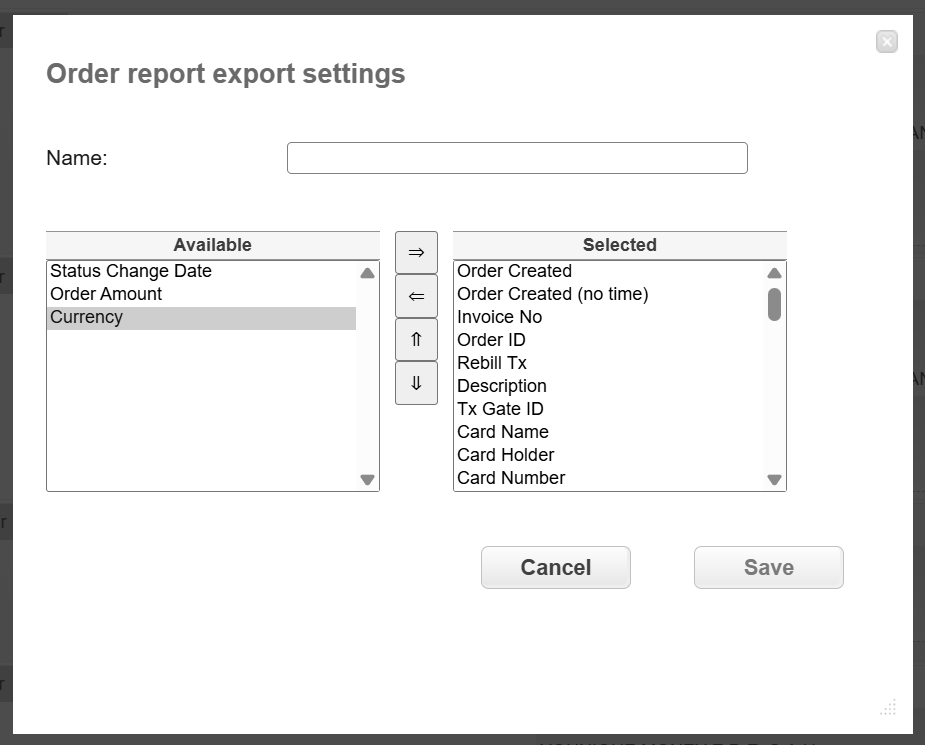
Download Of Selected Transactions Report
 - download to Excel format
 - download to CSV format.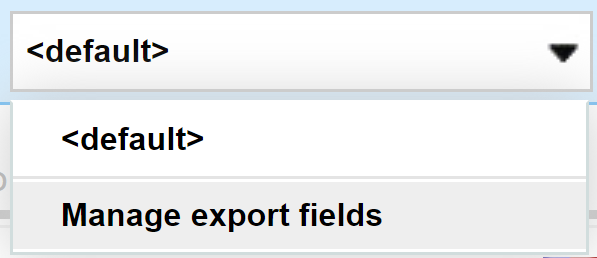
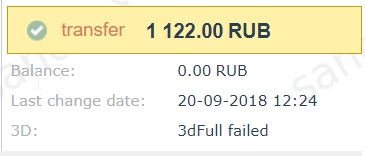
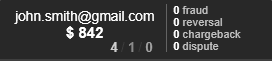
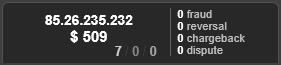
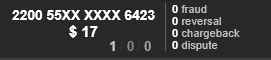
Order Details Screen
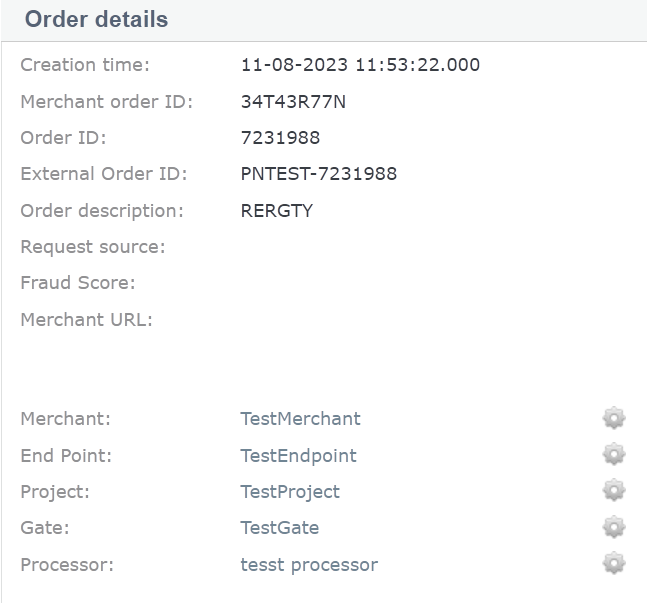
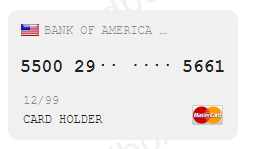
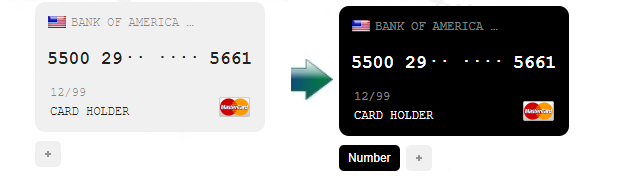
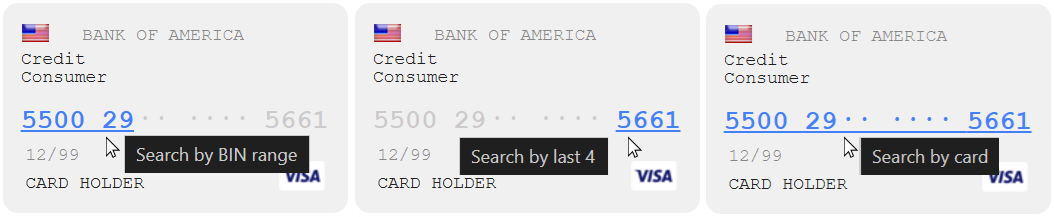
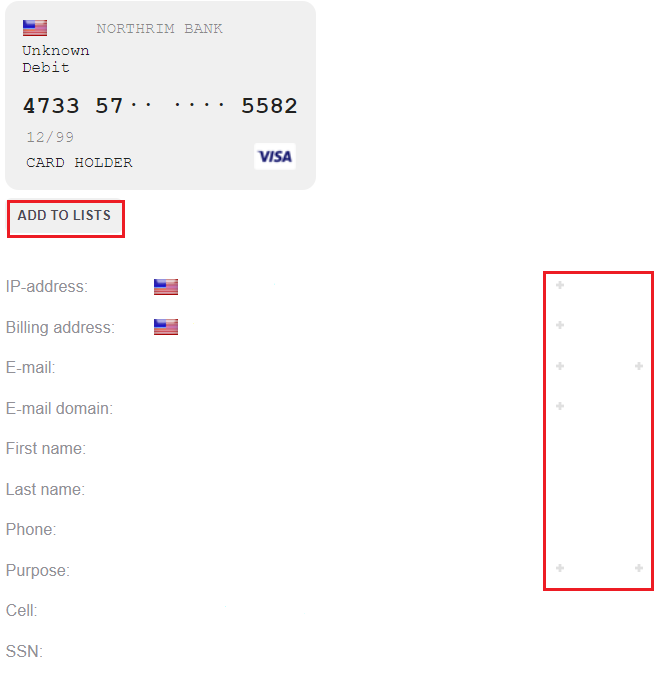
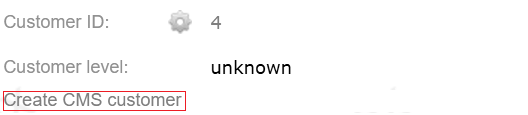
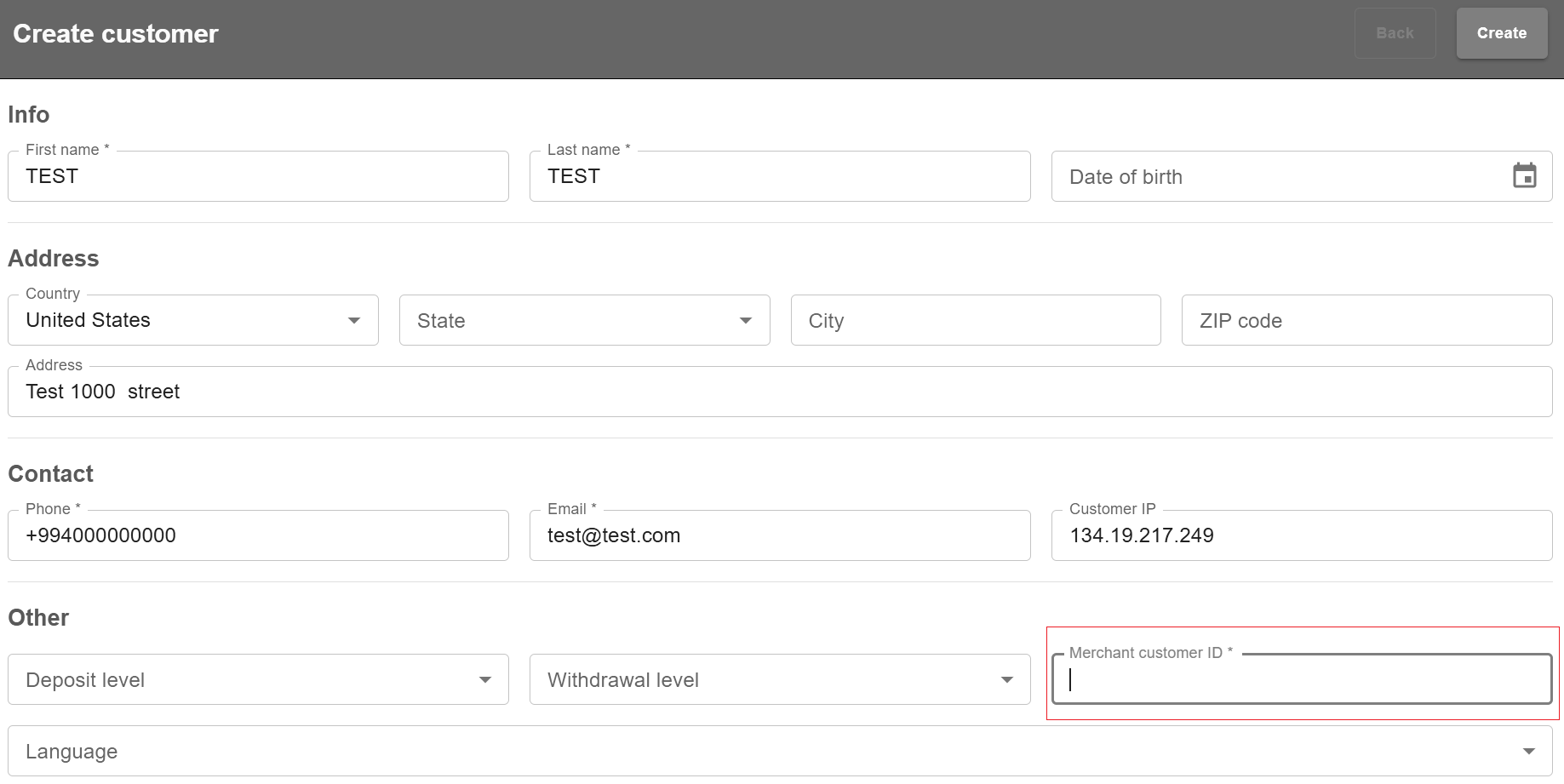
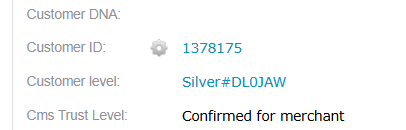


Captures And Cancels From Back Office
If Preauth has final successful status, the Merchant can initiate cancel which cancels the deduction and returns locked amount back to customer’s card or the Merchant can initiate capture which deducts the locked amount from customer’s card. To start a cancellation or capturing (deduction) of the transaction, go to the details of the relevant order. On the order details page, click the Cancel order button for cancellation of deducting and Capture order for deducting the locked amount.

Refunds From Back Office
If the order has final successful status, the Manager can return the money to the customer, on their request, for instance. To start a refund (reversal) transaction to the customer card, go to the details of the relevant order. On the order details page, click the Reverse order button.
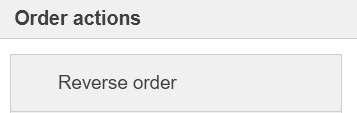
The dialog box will open like presented below:
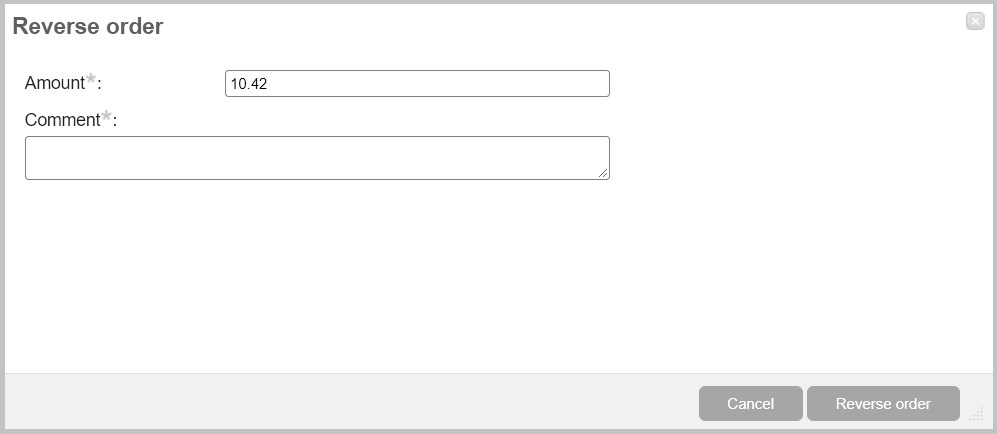
In this dialog box specify the amount of reversal. It can be the entire amount of the order, or only a part of it for cases where the Merchant refunds payment for certain goods that are part of one order. In the Comment field a description of this refund can be added.
Warning
Merchants must be extremely careful when making a refund on the order! Refund requests are immediately sent to the bank and it will not be possible to cancel this transaction from the Solid Payments system afterwards.
Callbacks From Back Office
If the order has final status and had server_callback_url in the initial request, the Merchant can re-send the final callback. To send a callback to the Connecting Party, go to the details of the relevant order. On the order details page, click the Callbacks button.
The dialog box will open like presented below:
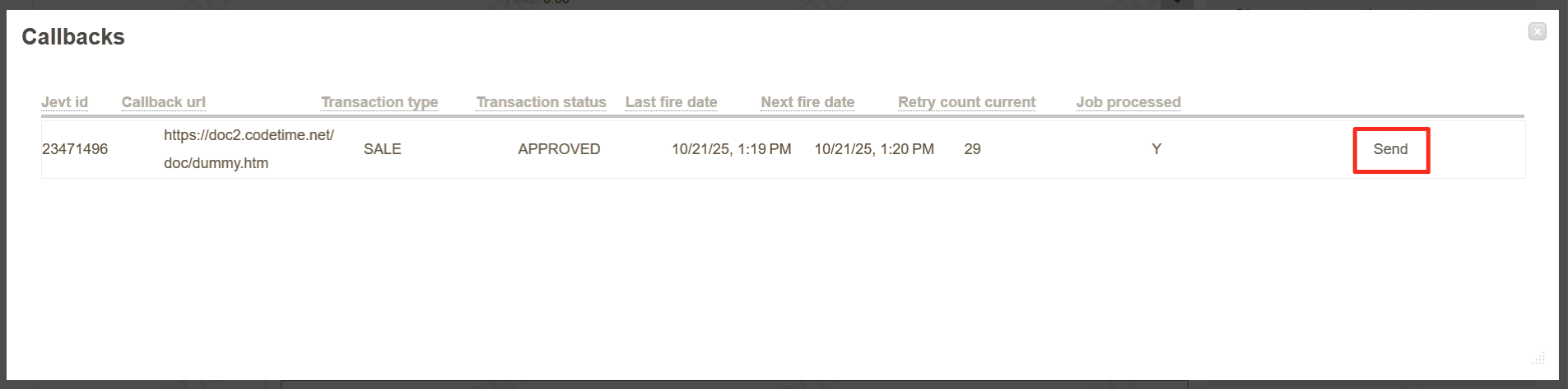
In this dialog box click Send Again to resend the callback to the Connecting Party. If the callback is not sent successfully, click Send Again to retry, or click Cancel to cancel the callback.
Callback Fields |
Description |
|---|---|
Event ID |
Callback event identifier |
Callback URL |
Callback receiver URL |
Transaction type |
Type of the transaction |
Transaction status |
Transaction status |
Last fire date |
Time of the last callback attempt |
Next fire date |
Time of the next callback attempt |
Retry count current |
Remaining automatic retry attempts |
Job processed |
Callback job processing status |
Callback Sending Logic
|
• callback sending is active
• automatic retries will occur
• Cancel button is available
|
|
• callback sending is stopped
• automatic retries will not occur
• Cancel button is not available
|
When the Send button is pressed, a single manual callback is sent and the Retry count current will decrease by 1.
The status will change from: Y → N if the callback attempt fails.
You can stop callbacks by pressing Cancel.
When the Cancel is pressed: The status will change from: N → Y, callback will stop and no further automatic attempts will occur.
Note
Cancelling a callback prevents any further automatic retry attempts until the callback is manually triggered again.
Change Status From Back Office
If the order has final status, the Manager can change the status from declined to approved (and the other way around). To change the order’s status manually, without requesting a status from provider, go to the details of the relevant order. On the order details page, click the Change Transaction Status button.

The dialog box will open like presented below:
|
Allows to change date and time of transaction. Leave it blank to keep existing date and time without change.
|
|
Allows to change the order’s amount.
|
|
An order’s status (DECLINED/APPROVED) should be chosen.
|
|
Allows to change External Order ID.
|
|
Allows to add a retrieval reference number of the transaction.
|
If there is more than one completed transaction (Gate) in the session, the user will be presented with a list of transactions and can select which one to update.
Only transactions with a final status will appear in this selection list. Transactions with a non-final status will not be included. If there is only one transaction with a final status in the session, the transaction selection list will not be displayed in the context window.
Warning
Please note that once the needed gate is chosen, all the subsequent gates after this gate will be deleted from the transaction.
If the order has a final declined status and there is more than one gate in the chain, the Manager can use the Rollback transaction & query status button to request the latest transaction status from the provider.
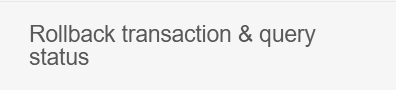
By pressing this button, a status request will be sent to the provider, and the transaction will be updated with the provider’s latest status.
3.2. Recurring Payments

|
Allows to select the specified repetition status of the recurring transaction:
Failed – unsuccessful attempt;
Scheduled – planned attempt;
Stopped – currently paused or finished attempt.
|
|
Allows to select the specified repetition type of the recurring transaction:
Manual – recurring payments are initiated manually;
Auto – recurring payments are initiated automatically in accordance with the set schedule;
Native- recurring payments use special integration with the acquiring bank.
|
|
Allows to select the specific endpoint if there are several endpoints available. |
|
Allows to select the specified project if there are several projects available.
Select one or more search criteria and click Search to find the needed transactions.
|
3.3. Ethoca Alerts
This section allows to see alerts from Ethoca which helps in preventing chargebacks:
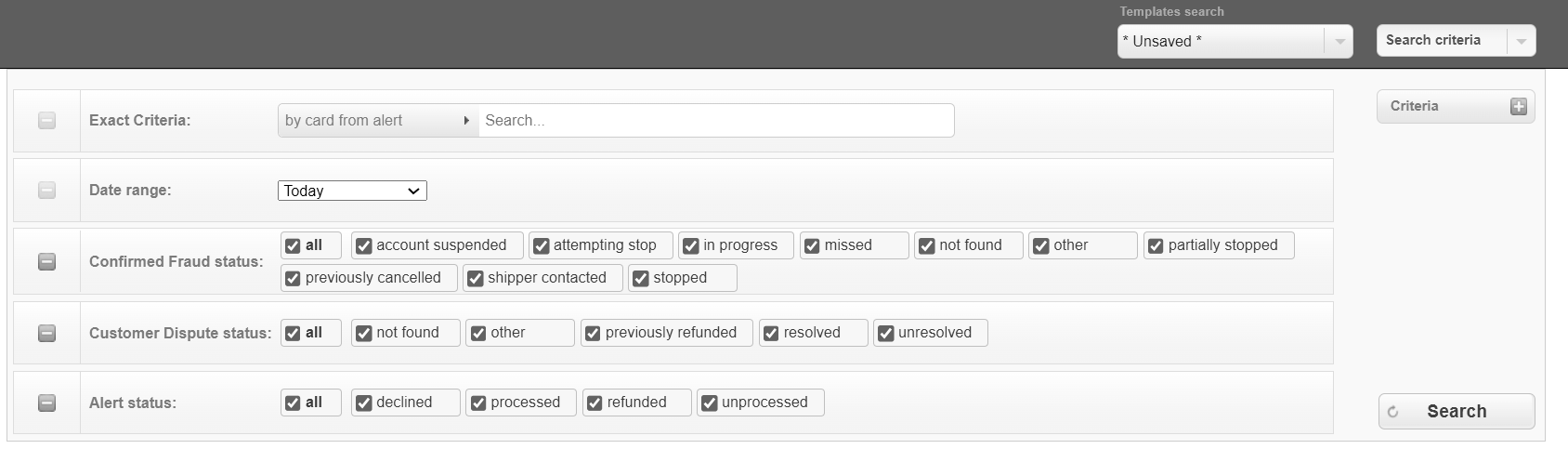
3.4. ChargebackHelp
This section allows to see alerts from Verifi which helps in preventing chargebacks:
